


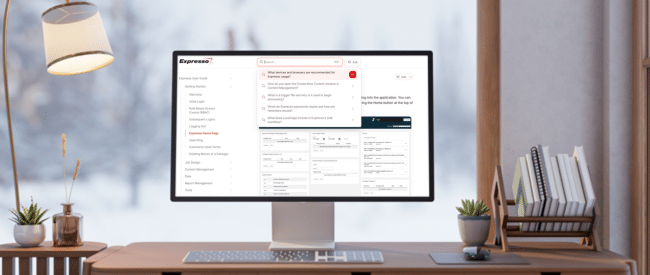
Our Expresso Manual, also referred to as the Expresso User Guide, has been recreated with new features, visuals and functionality, making it easier to quickly find the information you need to more effectively manage your Expresso programs. The new web-based, AI-enabled format is intuitive and simple to navigate, so whether you’ve been recently trained on Expresso or a seasoned user, the answers you need are just a few clicks away.
Some of the new features include updated Expresso screen shots for an improved visual experience, robust AI-enabled search functionality for enhanced navigation, and a new Frequently Asked Questions section.
Easy access
You can access the Expresso Manual from the top menu bar by first clicking on the Help button, then clicking on Expresso Manual in the dropdown menu.

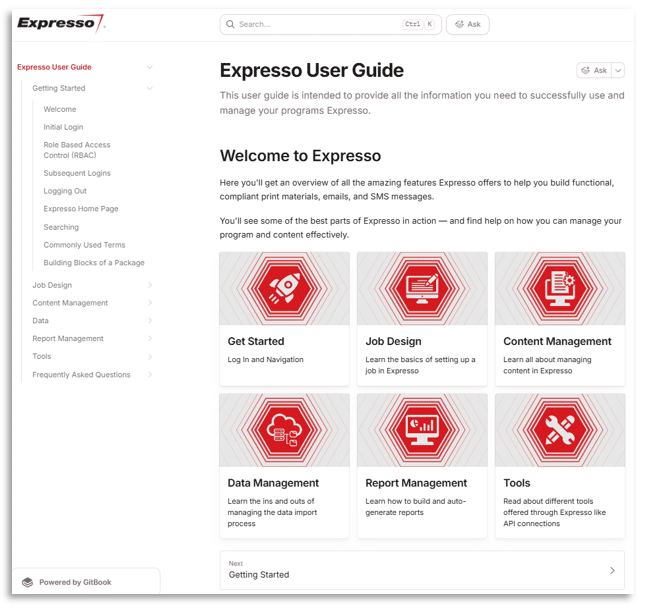
This opens the Expresso User Guide showing the navigation panel on the left and clickable icons for the primary sections, including Get Started, Job Design, Content Management, Data Management, Report Management and Tools.
How it works
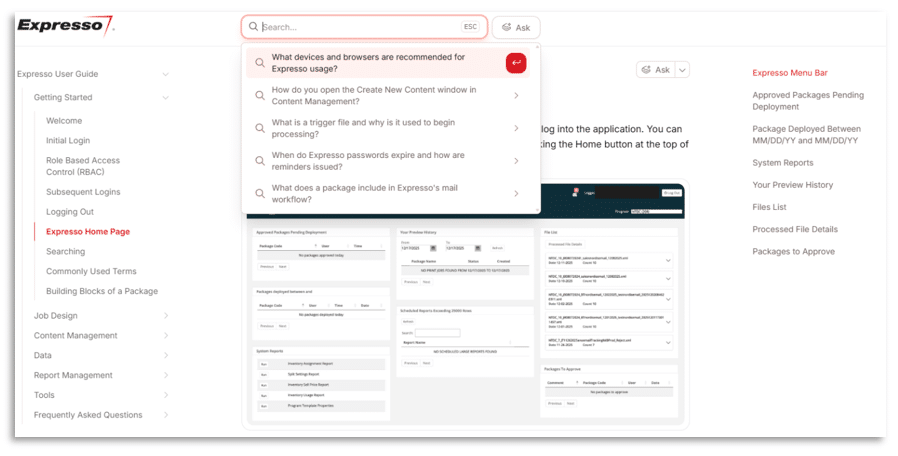
Built on the AI-native documentation Gitbook platform, the Expresso User Guide gives Expresso users multiple ways to quickly find the information needed. You can search by clicking through the navigation panel categories or topic icons, or by utilizing the AI-enabled search bar. Clicking in the search bar will bring up a list of commonly asked questions or you can type key terms, such as PDF margin rules, as well as conversational questions, such as How do I set up a new report? to generate a response with step-by-step instructions.
Examples of Commonly Accessed Sections
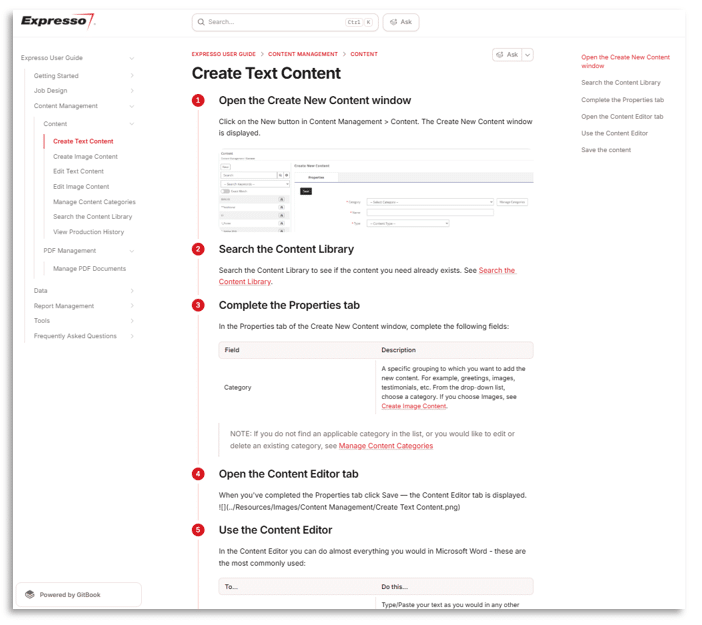
Content – This section menu provides options for creating and managing the content of your documents, custom tables and PDF documents. Within Content, the list of clickable topics is displayed that link to the subject areas with screenshots and detailed descriptions to guide you through the selected process. For example, if you need a refresher on creating or managing text content, simply click on one of the Create Text Content links to review the how-to instructions.
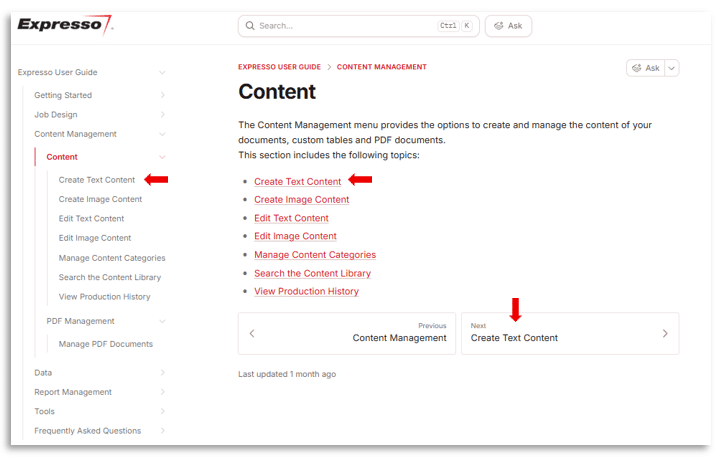
Create Text Content – Expresso users can easily navigate through a step-by-step tutorial for creating text content in this section.
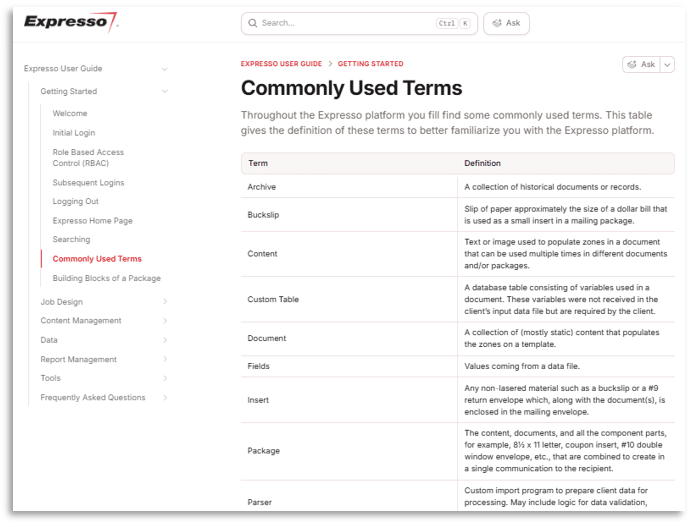
Commonly Used Terms – this section defines terms commonly used within the Expresso platform.
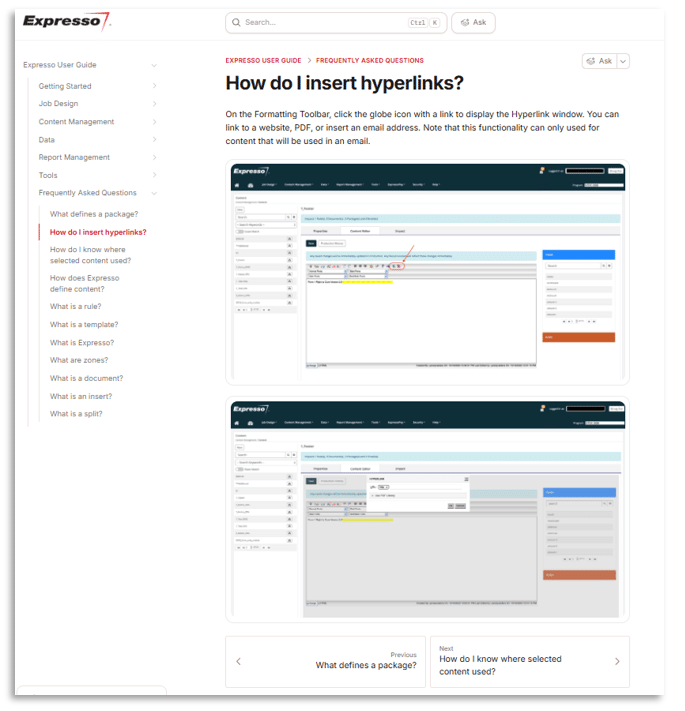
FAQs – Commonly asked questions about the Expresso platform can be clicked on to see the answers or you can use the search tool to find a topic. In the following example, How do I insert hyperlinks?, the Expresso user is provided with screen shots to illustrate the steps involved.
The new Expresso User Guide was designed for you. Whether you are just getting started, need a quick reminder on managing content or processing data, learning about reports or just about anything else, the information is available and easy to find.
To learn more about the Expresso User Guide, please review the following FAQs and reach out to your Client Experience Manager for additional details.
Frequently Asked Questions (FAQ)
Q: What is the Expresso user guide?
A: It’s an AI-enabled, web-based manual that helps you quickly learn how to complete tasks in Expresso—from getting started to job design, data, content, and report management.
Q: Why did the user guide move from PDF to a web-based experience?
A: A web-based guide is easier to keep current and much faster to search, so you can find the information you need without scrolling through a long PDF.
Q: How do I open the user guide from Expresso?
A: On Expresso’s home page, click Help, then select Expresso Manual from the dropdown.
Q: What’s the fastest way to find what I need?
A: Use the AI-enabled search bar for quick answers or browse by category if you prefer to navigate step-by-step.
Q: What should I type into the search bar?
A: You can use keywords (for example, “PDF margin rules”) or full questions (for example, “How do I set up a new report?”).
Q: What platform is the guide built on?
A: The Expresso user guide is hosted on GitBook, an AI-native documentation platform.
Q: How do I know the information is current?
A: Because the guide is web-based, updates can be published faster than a traditional PDF manual, helping you rely on the most current guidance.
Q: Can I browse instead of searching?
A: Yes. You can browse by category when you want to follow a guided path, or search when you want a direct answer.
Q: What kinds of topics does the guide cover?
A: It covers common Expresso workflows—from getting started to job design and data, content, and report management.
Q: Who do I contact if I can’t find an answer?
A: Reach out to your Customer Experience Manager for help with the Expresso user guide or for additional guidance.
Q: I don’t see “Expresso Manual” in the Help dropdown—what should I do?
A: Refresh Expresso and try again. If the option still doesn’t appear, contact your Customer Experience Manager so they can confirm your access and help troubleshoot.
Q: The guide opens, but a page won’t load or looks incomplete—what can I try first?
A: Try reloading the page and opening the guide in a new browser tab. If the issue continues, try a different browser or clear your browser cache, then reopen the guide from Expresso.
Q: Search isn’t returning what I expected—how can I refine my search?
A: Try a shorter keyword phrase (for example, “margin rules” instead of a full sentence) or use alternate terms for the same task (for example, “report setup” vs. “new report”). You can also browse by category if you’re not sure what the feature is called.
Q: I’m new to Expresso—where should I start in the guide?
A: Start with the “getting started” content, then follow the category that matches what you’re trying to do (job design and data, content, or reports). When in doubt, use search and ask a “how do I…” question using the task you’re trying to complete.
Q: I can open Expresso, but the guide won’t open—could this be a permissions or network issue?
A: It can be. If clicking Help → Expresso Manual does nothing, try a different browser and check whether pop-ups are blocked. If it still won’t open, contact your Customer Experience Manager to confirm access and any environment-specific restrictions.
Q: I think something is missing or outdated in the guide—how do I request an update?
A: Share the page name (or a screenshot) and what you expected to see with your Customer Experience Manager. They can route the request and let you know when an update is available.