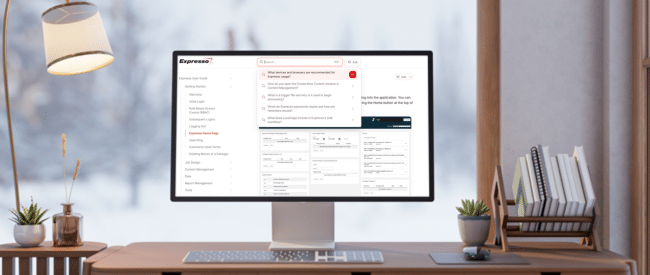


Our Expresso Manual, also referred to as the Expresso User Guide, has been recreated with new features, visuals and functionality, making it easier to quickly find the information you need to more effectively manage your Expresso programs. The new web-based, AI-enabled format is intuitive and simple to navigate, so whether you’ve been recently trained on Expresso or a seasoned user, the answers you need are just a few clicks away.
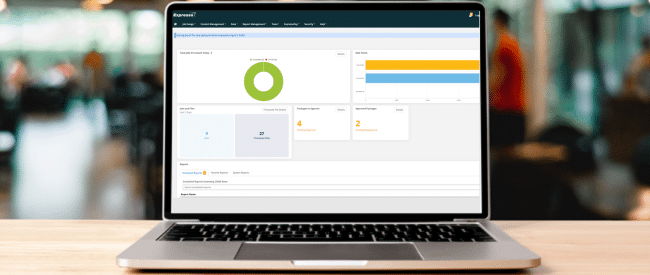
Some of the new features include updated Expresso screen shots for an improved visual experience, robust AI-enabled search functionality for enhanced navigation, and a new Frequently Asked Questions section.The Expresso homepage, which currently includes text-based information about reports and packages, is being transformed into a modular, data-driven dashboard which will offer users a snapshot of program performance using graphical representations along with the ability to drill down for more details as shown in the illustrations below.
This enhancement will be available to all Expresso users on April 2, 2026.
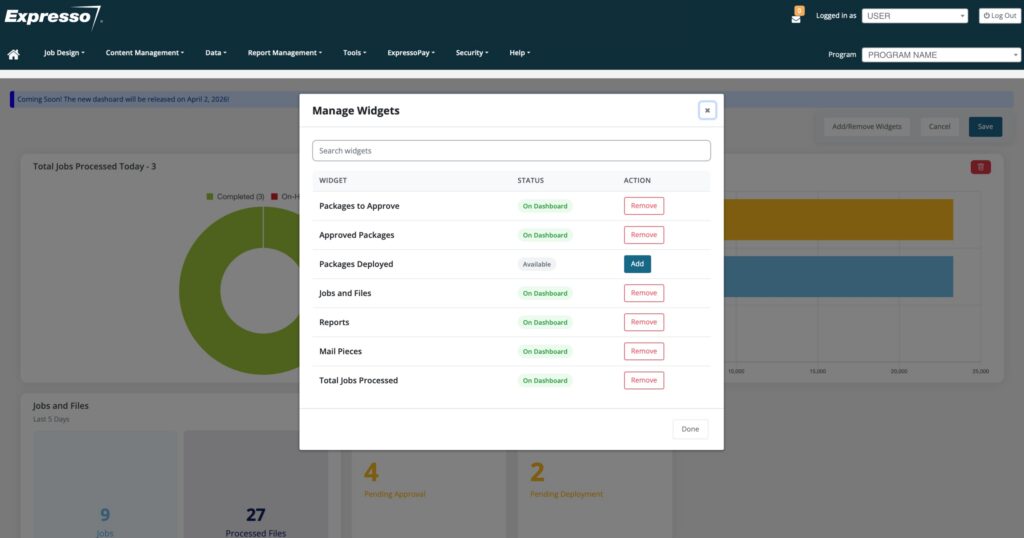
The new dashboard will be more visually appealing with improved features. The initial widgets that will be available include, Packages to Approve, Approved Packages, Packages Deployed, Jobs and Files, Reports, Mail Pieces, Total Jobs Processed.
You will now have the ability to select the widgets you would like to see on your Expresso dashboard. Using the Manage Widgets feature, you can easily add or remove widgets as needed, as well as easily arrange their placement on the screen by simply dragging the widget modules to where you want them to appear. Widgets can also be resized to fit your personalized layout.
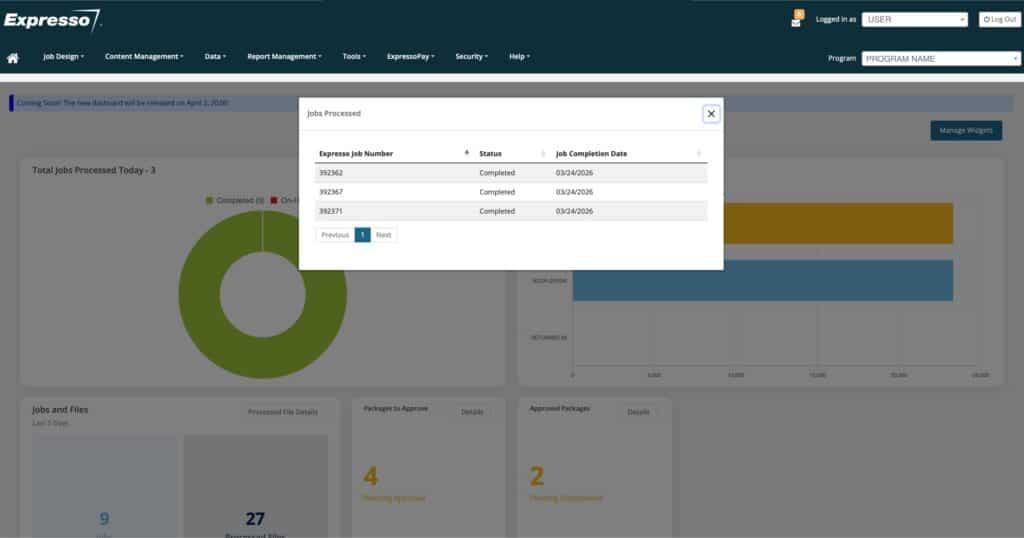
From the Details tab on each widget module you can click through to view the specific data points. In the example below the pop-up screen illustrates the details for the Total Jobs Processed for that day.
Built on the AI-native documentation Gitbook platform, the Expresso User Guide gives Expresso users multiple ways to quickly find the information needed. You can search by clicking through the navigation panel categories or topic icons, or by utilizing the AI-enabled search bar. Clicking in the search bar will bring up a list of commonly asked questions or you can type key terms, such as PDF margin rules, as well as conversational questions, such as How do I set up a new report? to generate a response with step-by-step instructions.
Expresso users should contact their Client Experience Manager for additional information.